Code Editor Setup
VS Code Setup
Section titled “VS Code Setup”What Is a Code Editor?
Section titled “What Is a Code Editor?”A code editor is a tool used to write, edit, and debug code. Good editors come with features like:
- Syntax highlighting
- Code auto-completion
- Error detection
- Built-in terminals
Popular editors include Sublime Text, Notepad++, and the widely-used Visual Studio Code (VS Code)—which we’ll be using for this course.
Why Visual Studio Code?
Section titled “Why Visual Studio Code?”VS Code, developed by Microsoft, is one of the most powerful and flexible editors available. It supports many languages and frameworks right out of the box and can be extended with thousands of extensions to suit your workflow.
Installing Extensions
Section titled “Installing Extensions”To make your experience smoother, you’ll need to install a few key extensions. Let’s start with Live Server.
-
Open VS Code
-
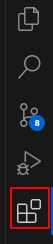
Click on the Extensions icon in the sidebar (or press
Ctrl + Shift + X)
-
In the search bar, type:
Live Server -
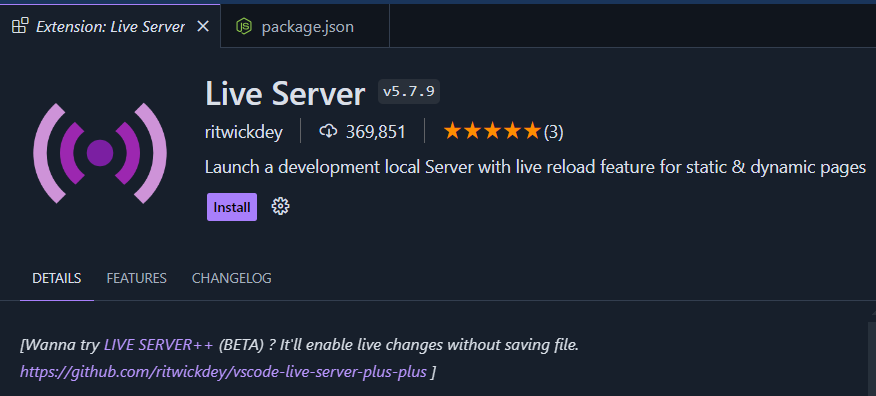
Look for the extension by ritwickdey
-
Click Install
-
After installation, you’ll see something like this:
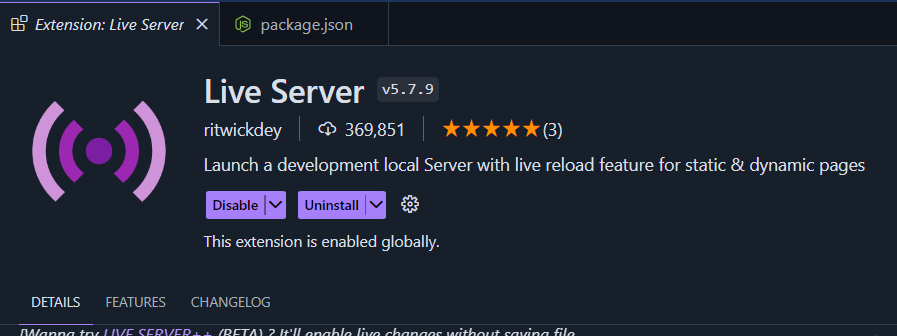
Note: Your VS Code may look different depending on the theme you’re using.
Bonus: Import Recommended Settings
Section titled “Bonus: Import Recommended Settings”Want to use the exact setup I use?
- Open VS Code
- Click Manage (⚙️ icon at bottom left) → Profiles → Import Profile
- Paste this link:
https://vscode.dev/profile/github/6e17339a353873a71694862c179f0119 - Click Create Profile to import everything